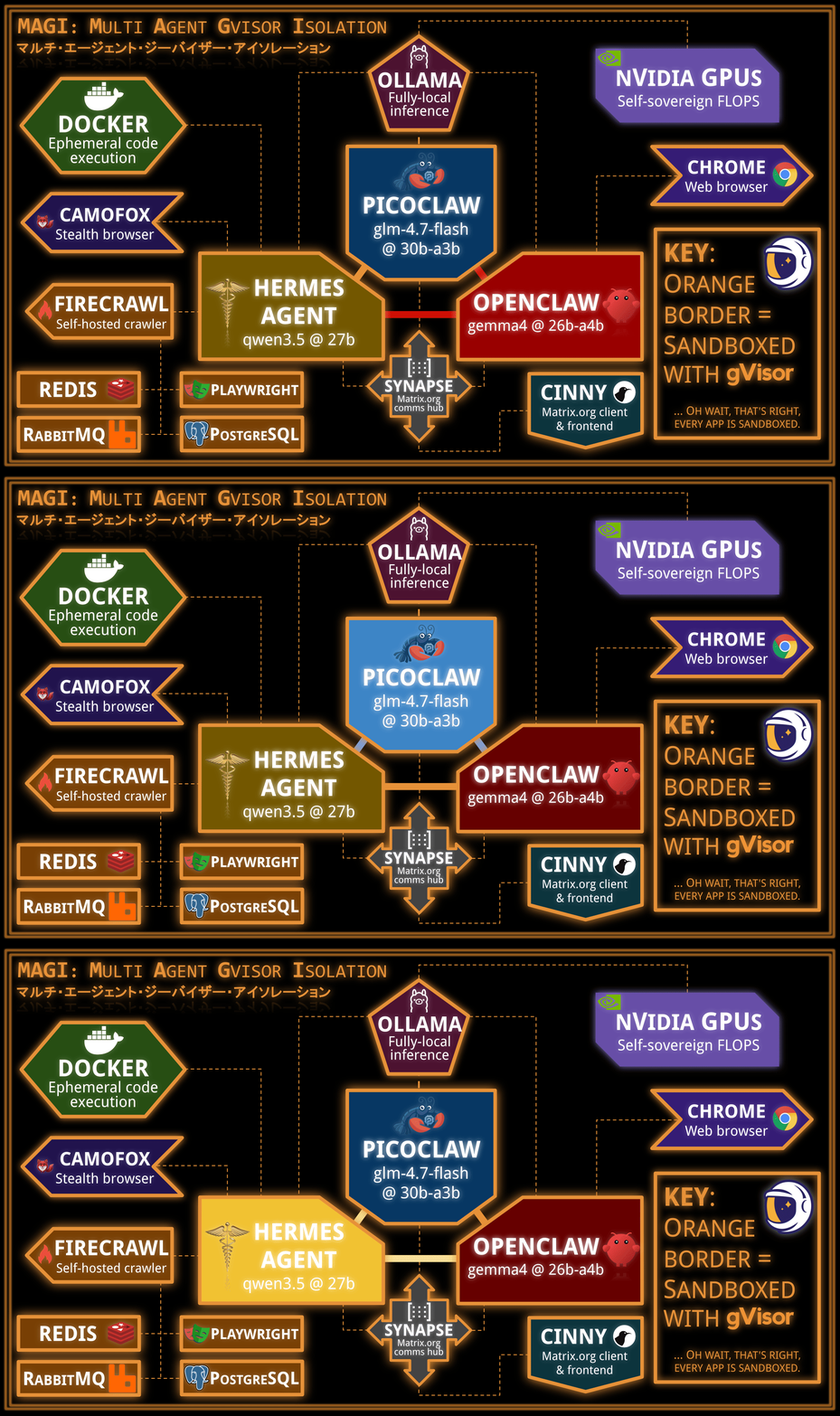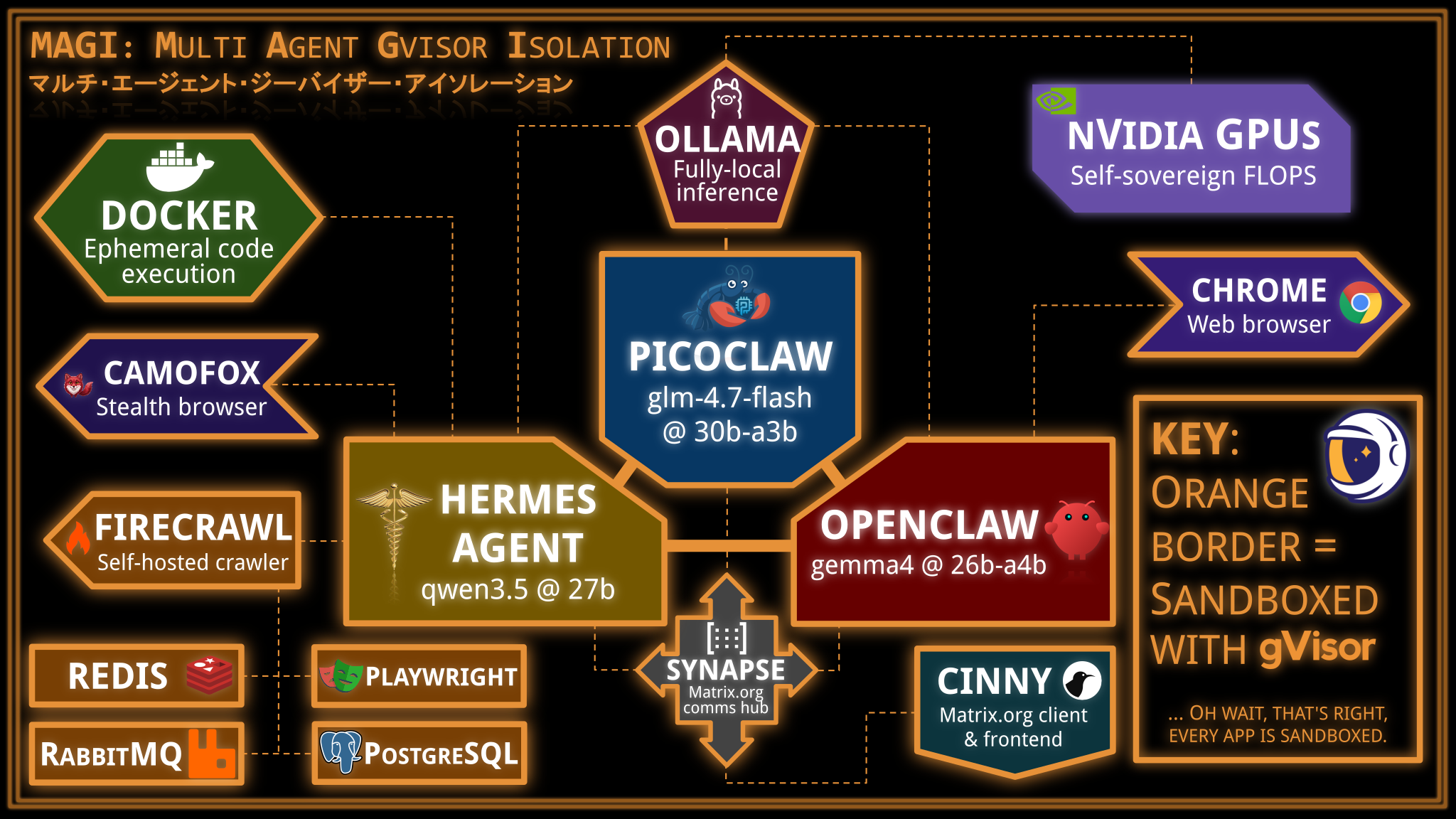
Does gVisor work with OpenClaw? This question has been asked a lot, so let’s answer it here and now: Yes.
In this post, we will set up a triple-agent system combining OpenClaw, PicoClaw, and Hermes Agent, each in separate gVisor sandboxes, all with local inference powered by Ollama in a gVisor sandbox using three different models, convening together in a self-hosted Matrix.org server (naturally, also running in a gVisor sandbox). Each agent will be given its own set of capabilities, each of which will be sandboxed. At the end of the day, you will have a fully self-sovereign triple-agent system that can answer queries, browse the web, and cogitate with itself.
Does this particular setup make practical sense? No, but it is cool. More importantly, it demonstrates the versatility of gVisor at sandboxing basically any component that an agentic system may need. gVisor’s compatibility has grown significantly over the last few years, and agent harnesses fit well within what gVisor is capable of.
Let’s go.
Basic machine setup: Docker/gVisor/NVIDIA drivers
We will use a g2-standard-96 GCE VM running stock Ubuntu for this, but any
Linux machine with similar GPUs would work. This section describes its basic
setup.
g2-standard-96 GCE VM running stock Ubuntu for this, but any
Linux machine with similar GPUs would work. This section describes its basic
setup.Getting a GCE VM:
$ gcloud compute instances create magi \
    --project=eperot-gke-dev \
    --zone=europe-west1-c \
    --machine-type=g2-standard-96 \
    --maintenance-policy=TERMINATE \
    --accelerator=count=8,type=nvidia-l4 \
    --create-disk=auto-delete=yes,boot=yes,device-name=magi,image=projects/ubuntu-os-cloud/global/images/ubuntu-2404-noble-amd64-v20260316,mode=rw,size=2048,type=pd-ssd
We will be using the following ports:
8008: Matrix.org server (Synapse)8084: Cinny web UI (Matrix.org client)11434: Ollama (inference API server)18789: OpenClaw gateway web UI18790: PicoClaw gateway3002: Self-hosted Firecrawl
If SSHing into a VM, you can forward some of them for convenient access:
-L 8008:127.0.0.1:8008 -L 8084:127.0.0.1:8084 -L 11434:127.0.0.1:11434 -L 18789:127.0.0.1:18789
Setting up the GCE VM (once SSH’d as root):
# Basics
sudo apt-get update && sudo apt-get -y upgrade

# NVIDIA driver
DRIVER_VERSION=610.57.04; \
  sudo apt-get install -y build-essential linux-headers-$(uname -r) && \
  curl -fSsl -O "https://us.download.nvidia.com/tesla/$DRIVER_VERSION/NVIDIA-Linux-x86_64-$DRIVER_VERSION.run" && \
  sudo sh NVIDIA-Linux-x86_64-$DRIVER_VERSION.run && \
  rm NVIDIA-Linux-x86_64-$DRIVER_VERSION.run

# Docker
sudo apt update && \
  sudo apt install -y ca-certificates curl && \
  sudo install -m 0755 -d /etc/apt/keyrings && \
  sudo curl -fsSL https://download.docker.com/linux/ubuntu/gpg -o /etc/apt/keyrings/docker.asc && \
  sudo chmod a+r /etc/apt/keyrings/docker.asc
sudo tee /etc/apt/sources.list.d/docker.sources <<EOF
Types: deb
URIs: https://download.docker.com/linux/ubuntu
Suites: $(. /etc/os-release && echo "${UBUNTU_CODENAME:-$VERSION_CODENAME}")
Components: stable
Signed-By: /etc/apt/keyrings/docker.asc
EOF
sudo apt update && \
  sudo apt install -y docker-ce docker-ce-cli containerd.io docker-buildx-plugin docker-compose-plugin

# NVIDIA container toolkit
sudo apt-get update && sudo apt-get install -y --no-install-recommends \
  ca-certificates \
  curl \
  gnupg2 && \
  curl -fsSL https://nvidia.github.io/libnvidia-container/gpgkey | sudo gpg --dearmor -o /usr/share/keyrings/nvidia-container-toolkit-keyring.gpg && \
  curl -s -L https://nvidia.github.io/libnvidia-container/stable/deb/nvidia-container-toolkit.list | \
    sed 's#deb https://#deb [signed-by=/usr/share/keyrings/nvidia-container-toolkit-keyring.gpg] https://#g' | \
    sudo tee /etc/apt/sources.list.d/nvidia-container-toolkit.list && \
    sudo apt-get update && \
    export NVIDIA_CONTAINER_TOOLKIT_VERSION=1.19.0-1 && \
    sudo apt-get install -y \
      nvidia-container-toolkit=${NVIDIA_CONTAINER_TOOLKIT_VERSION} \
      nvidia-container-toolkit-base=${NVIDIA_CONTAINER_TOOLKIT_VERSION} \
      libnvidia-container-tools=${NVIDIA_CONTAINER_TOOLKIT_VERSION} \
      libnvidia-container1=${NVIDIA_CONTAINER_TOOLKIT_VERSION}

# gVisor
sudo apt-get update && \
  sudo apt-get install -y \
    apt-transport-https \
    ca-certificates \
    curl \
    gnupg && \
  curl -fsSL https://gvisor.dev/archive.key | sudo gpg --dearmor -o /usr/share/keyrings/gvisor-archive-keyring.gpg && \
  echo "deb [arch=$(dpkg --print-architecture) signed-by=/usr/share/keyrings/gvisor-archive-keyring.gpg] https://storage.googleapis.com/gvisor/releases release main" | sudo tee /etc/apt/sources.list.d/gvisor.list > /dev/null && \
  sudo apt-get update && sudo apt-get install -y runsc && \
  sudo runsc install -- --nvproxy=true --nvproxy-allowed-driver-capabilities=all --net-raw=true --allow-packet-socket-write=true --host-uds=all --debug-log=/tmp/runsc/ && \
  sudo systemctl restart docker
Verifying everything works:
$ nvidia-smi
$ docker run --runtime=runsc --gpus=all --rm ubuntu:latest sh -c 'ls -al /dev/nvidia*'
Self-hosted Matrix.org server + Cinny web frontend setup
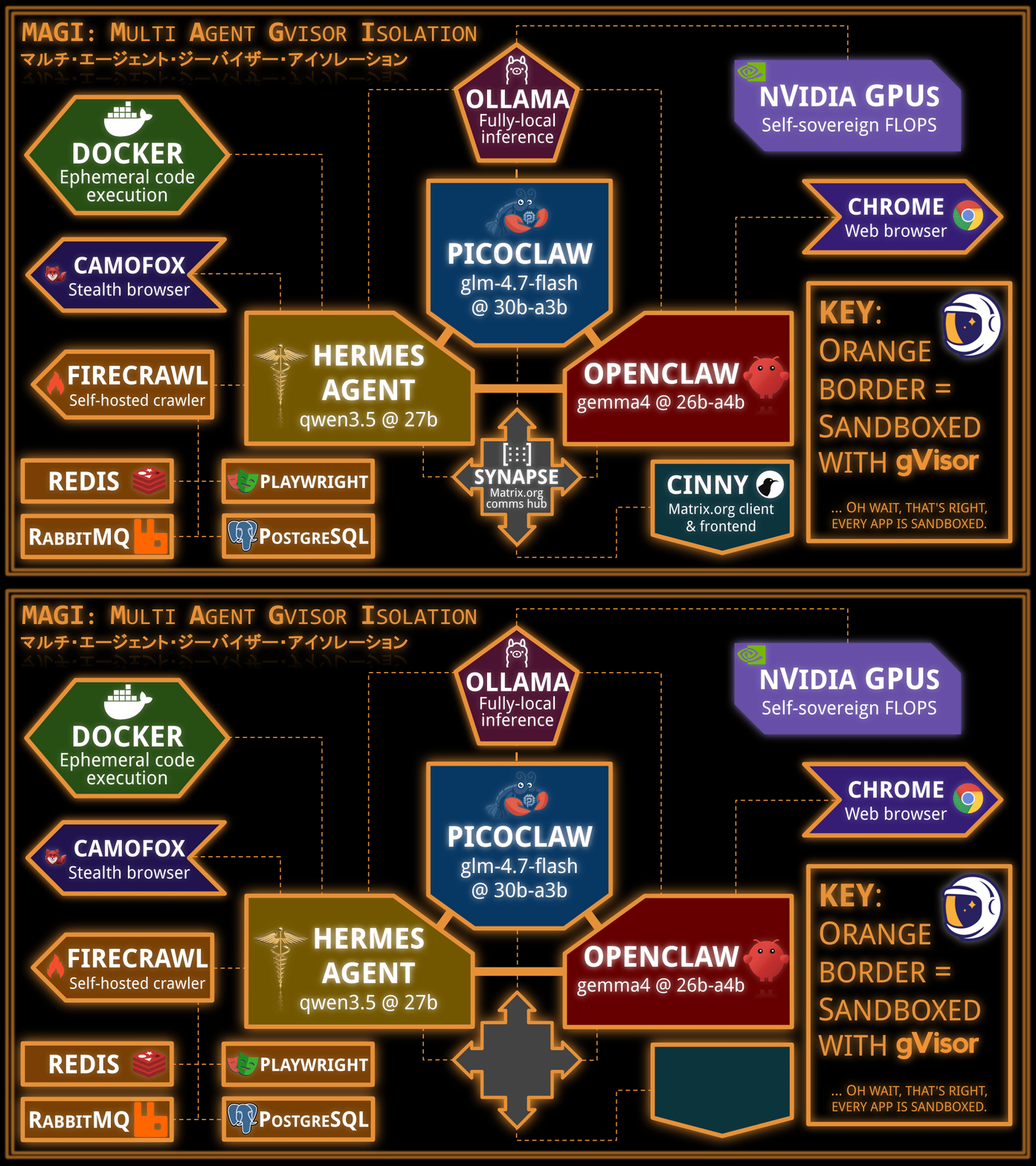
Let’s set up the Matrix.org server for communication, and the Cinny web client that we humans can use to communicate with it.
# Generate homeserver.yaml
$ docker run -it --runtime=runsc --rm \
    --mount=type=volume,src=synapse-data,dst=/data \
    -e SYNAPSE_SERVER_NAME=magi \
    -e SYNAPSE_REPORT_STATS=no \
    matrixdotorg/synapse:latest generate

# Run server
$ docker run --detach --runtime=runsc --restart=always --name=synapse \
    --mount=type=volume,src=synapse-data,dst=/data \
    -p 8008:8008 \
    matrixdotorg/synapse:latest

# Create admin user
$ docker exec -it synapse register_new_matrix_user \
    -c /data/homeserver.yaml \
    --user gendo --password yui --admin

# Run cinny (Matrix client)
$ docker run -it --runtime=runsc --restart=always --name=cinny \
    --link=synapse:synapse \
    -p 8084:80 \
    ghcr.io/cinnyapp/cinny:latest

# Access Cinny web UI at http://localhost:8084
# Log in as:
#   Homeserver: http://127.0.0.1:8008
#   Username: gendo
#   Password: yui
Self-hosted inference server: Ollama
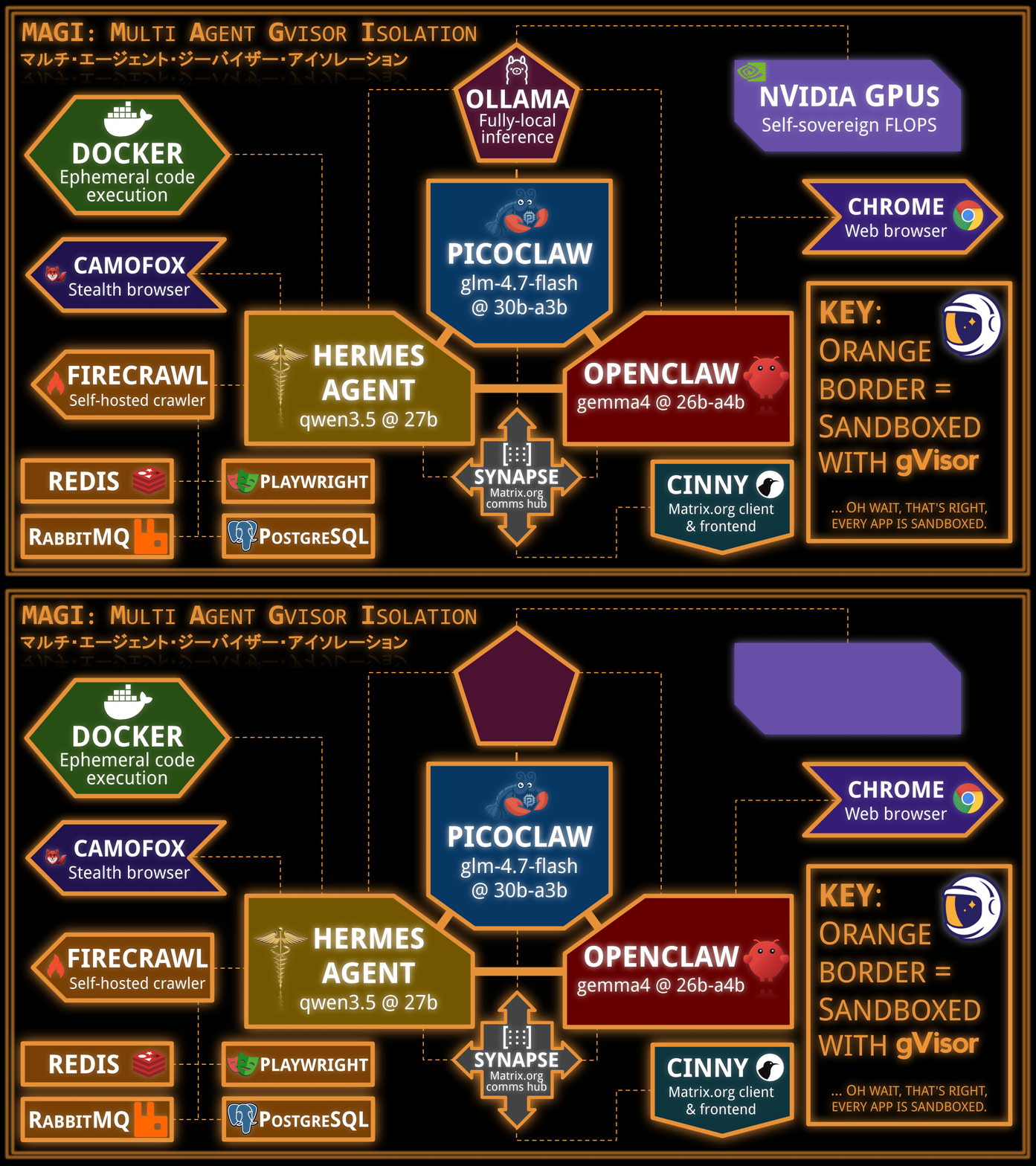
Setting up Ollama, the GPU-enabled inference server and the brain of it all.
$ docker run --detach --runtime=runsc --restart=always --name=ollama \
    --gpus=all \
    --mount=type=volume,src=ollama-data,dst=/root \
    -p 11434:11434 \
    ollama/ollama:0.20.0

# Pull and load some models.
$ docker exec -it ollama sh -c 'ollama pull qwen3.5:27b-q4_K_M   && ollama run --keepalive=9001h qwen3.5:27b-q4_K_M     Say hello.'
$ docker exec -it ollama sh -c 'ollama pull glm-4.7-flash:q4_K_M && ollama run --keepalive=9001h glm-4.7-flash:q4_K_M   Say hello.'
$ docker exec -it ollama sh -c 'ollama pull gpt-oss:20b          && ollama run --keepalive=9001h gemma4:26b-a4b-it-q8_0 Say hello.'
$ docker exec -it ollama sh -c 'ollama pull gpt-oss:20b          && ollama run --keepalive=9001h nomic-embed-text:137m-v1.5-fp16 ""'

# Make sure they all fit together in VRAM, otherwise you'll get bad performance.
$ docker exec -it ollama ollama ps
NAME                      ID              SIZE     PROCESSOR    CONTEXT    UNTIL
gemma4:26b-a4b-it-q8_0    6bfaf9a8cb37    89 GB    100% GPU     262144     12 months from now
glm-4.7-flash:q4_K_M      d1a8a26252f1    40 GB    100% GPU     202752     12 months from now
qwen3.5:27b-q4_K_M        7653528ba5cb    44 GB    100% GPU     262144     12 months from now
Containerized OpenClaw setup with Browser Use
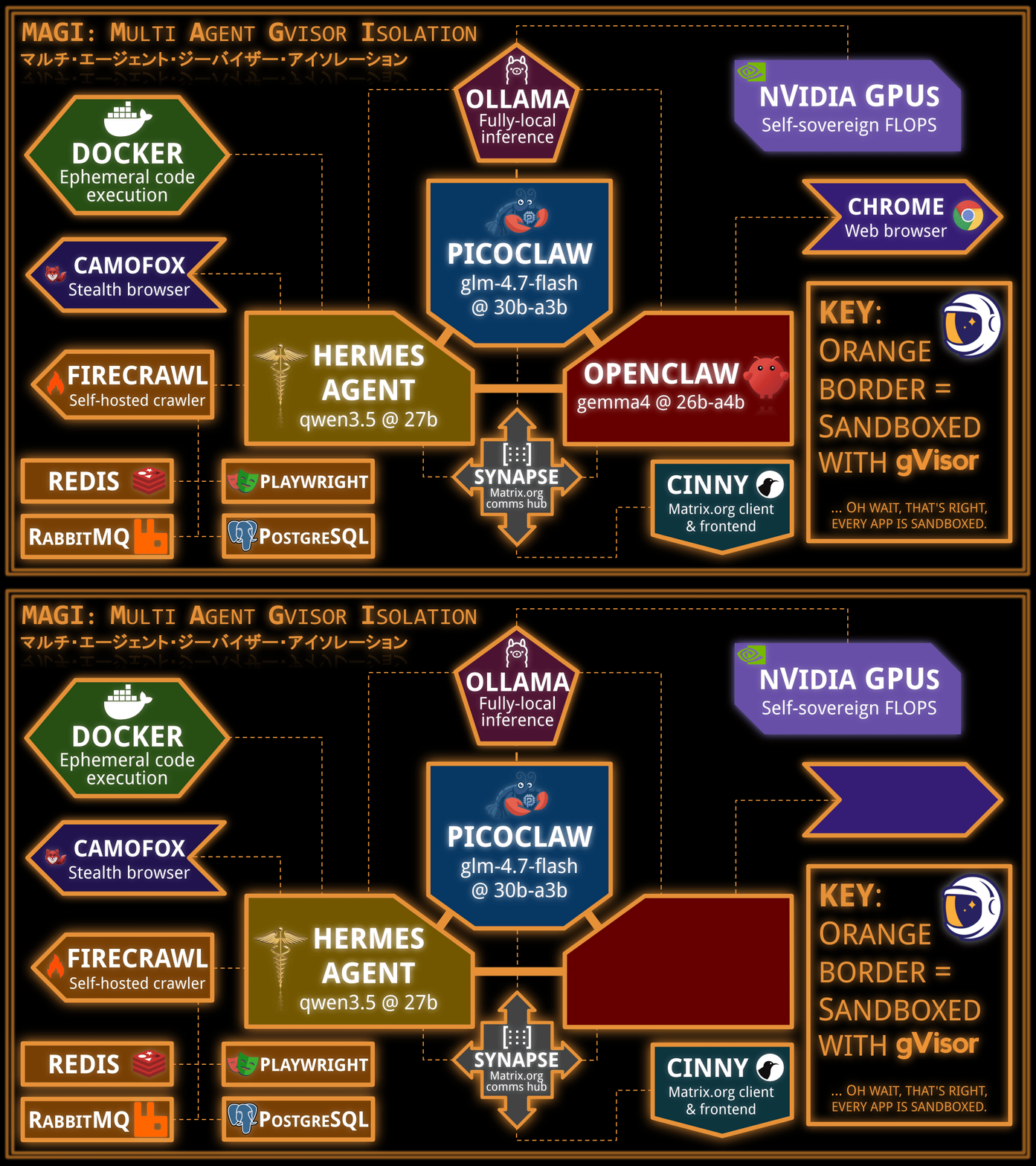
Now let’s set up OpenClaw and hook it up to a web browser for fully-local Browser Use.
We will use the official ghcr.io/openclaw/openclaw OpenClaw container image,
but we will also modify it to install the Google Chrome, as per
recommended in the OpenClaw docs.
This will allow the agent to use a web browser, all running in gVisor.
$ export MELCHIOR="$HOME/agents/melchior-1"; mkdir -p "$MELCHIOR"
$ cat <<EOF > "$MELCHIOR/Dockerfile"
FROM ghcr.io/openclaw/openclaw:2026.4.2

USER 0:0
RUN export DEBIAN_FRONTEND=noninteractive; apt update -y && \
    apt install -y wget chromium libvulkan1 && \
    wget https://dl.google.com/linux/direct/google-chrome-stable_current_amd64.deb && \
    dpkg -i google-chrome-stable_current_amd64.deb && \
    rm google-chrome-stable_current_amd64.deb && \
    apt --fix-broken install -y
EOF

$ docker build -t openclaw:melchior-1 "$MELCHIOR"
Note that the resulting image runs as root. This is not a security risk; “root” in a gVisor sandbox doesn’t imply any root-like level access on the host.
Let’s create a Matrix account for it and seed its configuration:
$ mkdir -p "$MELCHIOR/config" "$MELCHIOR/home"

$ docker exec -it synapse register_new_matrix_user \
    -c /data/homeserver.yaml \
    --user melchior --password akagi --no-admin

$ cat <<EOF > "$MELCHIOR/config/openclaw.json"
{
  "auth": {
    "profiles": {
      "ollama:default": {
        "provider": "ollama",
        "mode": "api_key"
      }
    }
  },
  "agents": {
    "defaults": {
      "models": {
        "ollama/gemma4:26b-a4b-it-q8_0": {}
      }
    }
  },
  "models": {
    "mode": "merge",
    "providers": {
      "ollama": {
        "baseUrl": "http://ollama:11434",
        "api": "ollama",
        "apiKey": "OLLAMA_API_KEY",
        "models": [
          {
            "id": "gemma4:26b-a4b-it-q8_0",
            "name": "gemma4:26b-a4b-it-q8_0",
            "reasoning": true,
            "input": [
              "text"
            ],
            "cost": {
              "input": 0,
              "output": 0,
              "cacheRead": 0,
              "cacheWrite": 0
            },
            "contextWindow": 262144,
            "maxTokens": 8192
          }
        ]
      }
    }
  },
  "channels": {
    "matrix": {
      "enabled": true,
      "homeserver": "http://synapse:8008",
      "userId": "@melchior:magi",
      "password": "akagi",
      "deviceName": "Melchior",
      "allowPrivateNetwork": true,
      "encryption": false,
      "groupPolicy": "open",
      "autoJoin": "always",
      "dm": {
        "policy": "open",
        "allowFrom": [
          "*"
        ]
      }
    }
  },
  "gateway": {
    "mode": "local",
    "controlUi": {
      "dangerouslyDisableDeviceAuth": true,
      "dangerouslyAllowHostHeaderOriginFallback": true
    }
  },
  "skills": {
    "install": {
      "nodeManager": "npm"
    }
  },
  "browser": {
    "enabled": true,
    "executablePath": "/usr/bin/google-chrome-stable",
    "headless": true,
    "noSandbox": true
  },
  "tools": {
    "web": {
      "search": {
        "enabled": true,
        "provider": "duckduckgo"
      },
      "fetch": {
        "enabled": true
      }
    }
  },
  "plugins": {
    "entries": {
      "matrix": {
        "enabled": true
      },
      "browser": {
        "enabled": true
      }
    }
  }
}
EOF
Note: for the purpose of simplifying demo setup, the above configuration disables authentication, allows the bot to auto-join all Matrix channels it is invited to, etc. For real deployments, do not use these settings.
Let’s run it!
$ export MELCHIOR="$HOME/agents/melchior-1"; docker run --detach \
    --name=melchior \
    --runtime=runsc \
    --restart=always \
    --env=OPENCLAW_GATEWAY_TOKEN="dummy-token-for-sandbox" \
    --env=OPENCLAW_CONFIG_PATH="/etc/openclaw/openclaw.json" \
    -p 18789:18789 \
    --env=HOME=/home/node \
    --link=synapse:synapse \
    --link=ollama:ollama \
    -v "$MELCHIOR/home":/home/node/.openclaw \
    -v "$MELCHIOR/config":/etc/openclaw \
    openclaw:melchior-1 \
    node \
        dist/index.js \
        gateway \
           --bind=lan \
           --port=18789 \
           --allow-unconfigured \
           --verbose
Run docker exec -it melchior openclaw configure for further interactive
configuration.
You can now go to http://127.0.0.1:18789/?token=dummy-token-for-sandbox and
talk to your OpenClaw instance!
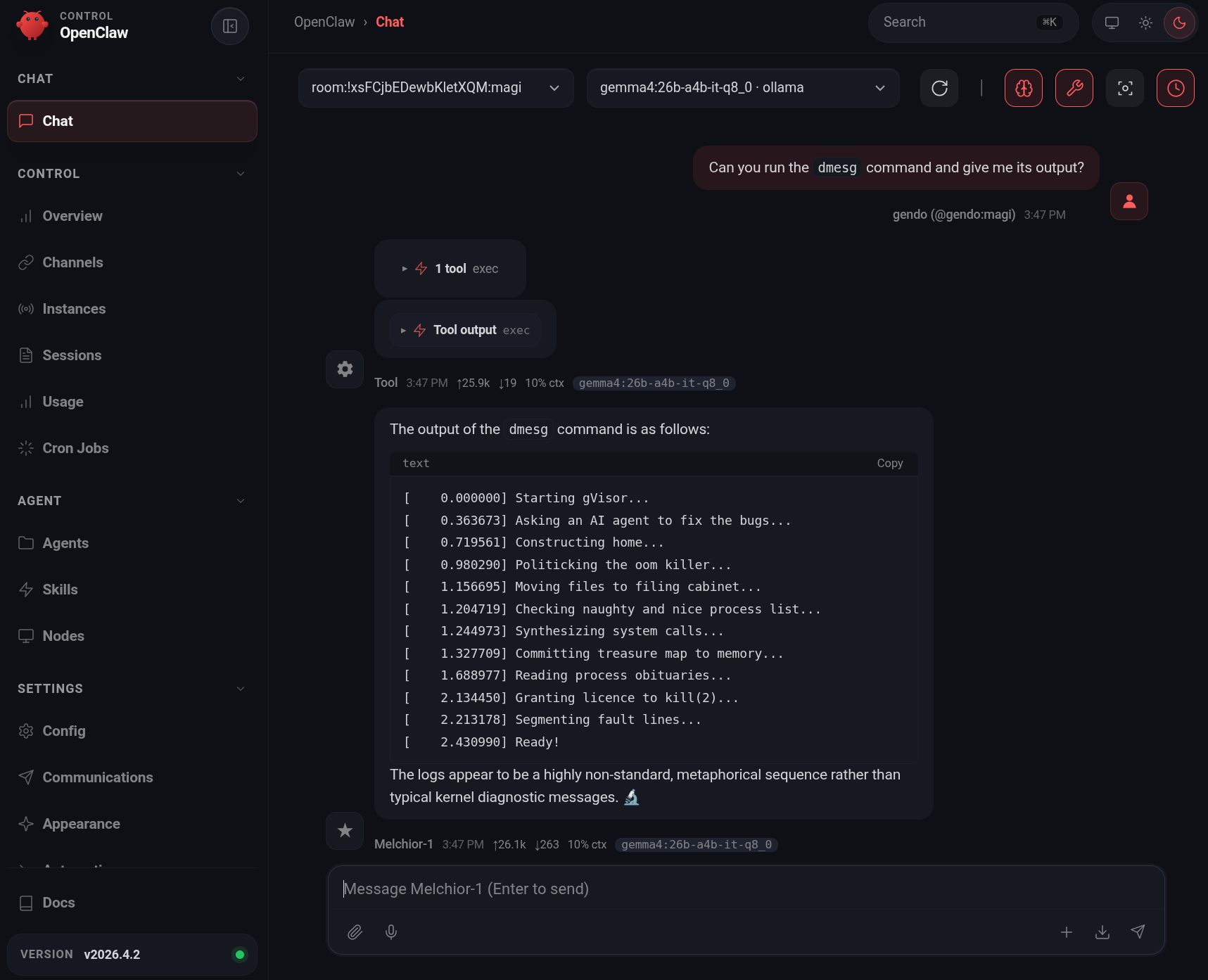
dmesg output is characteristic of gVisor.Browser Use
The Dockerfile we built earlier contains the Google Chrome web browser, which
OpenClaw knows how to use. You can ask it to open websites and take
screenshots. Here is the gVisor website rendered in Chrome-in-gVisor by
OpenClaw:
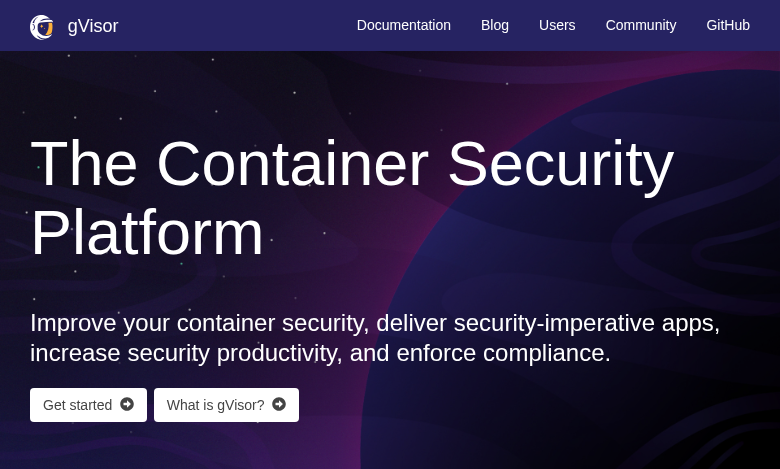
Funnily enough, the OpenClaw web interface didn't provide the means for OpenClaw to display this image directly.
OpenClaw autonomously solved this problem by uploading this picture to a temporary image hosting service and responding with the uploaded image URL.
Now let’s bring the other two brains to life.
Containerized PicoClaw with web and GitHub skills
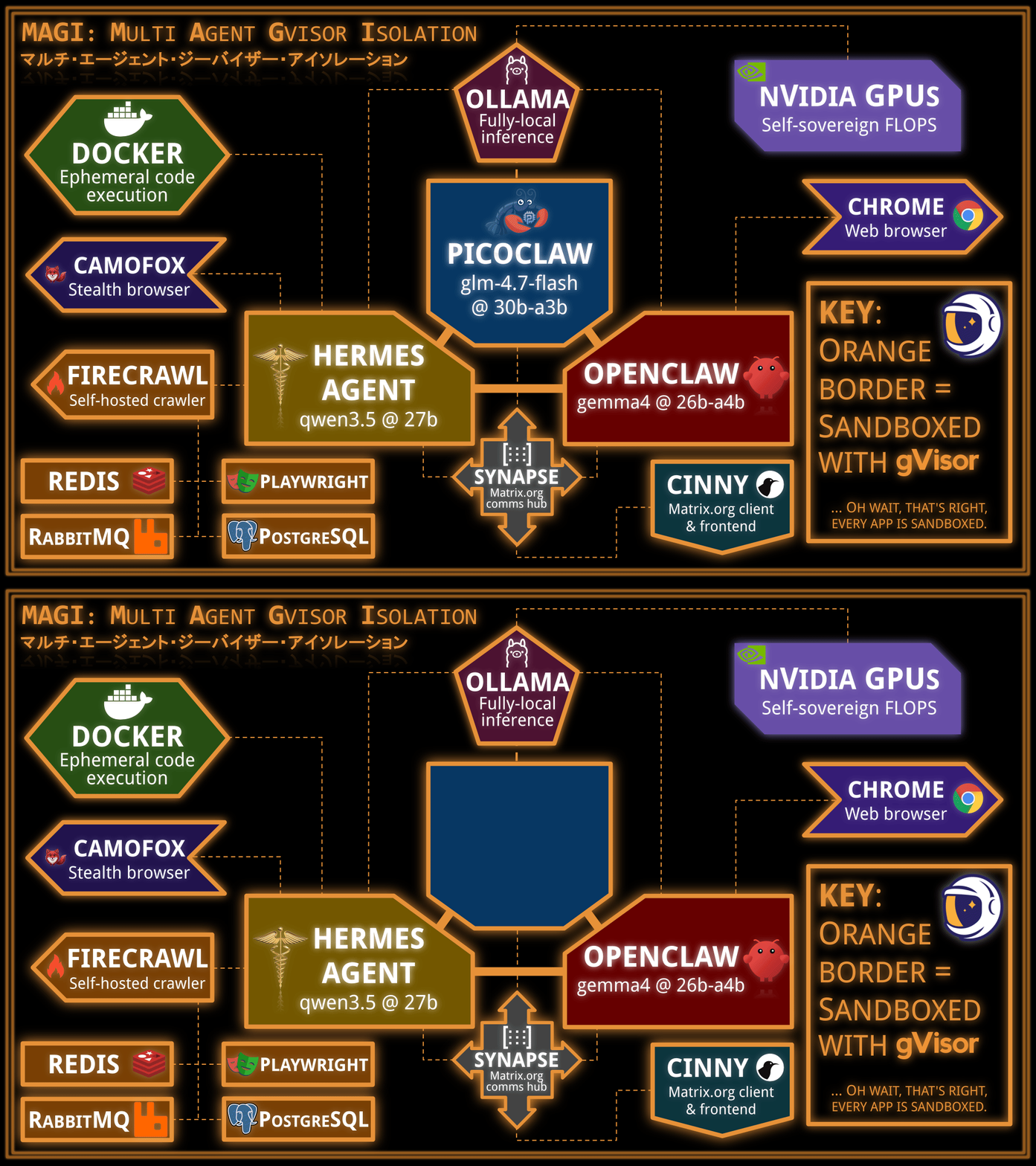
Moving on to PicoClaw, the minimal agent.
We will use the PicoClaw Docker image, and enable a few skills for GitHub interaction with the gVisor repository.
Note that while this demo was on a x86-64 VM, PicoClaw has also been confirmed to work in gVisor on arm64 on a Raspberry Pi 4 Model B.
$ export BALTHASAR="$HOME/agents/balthasar-2"; mkdir -p "$BALTHASAR/picoclaw"
$ docker exec -it synapse register_new_matrix_user \
    -c /data/homeserver.yaml \
    --user balthasar --password ritsuko --no-admin
$ matrix_token="$(curl -X POST -H "Content-Type: application/json" \
    "http://127.0.0.1:8008/_matrix/client/v3/login" \
    -d \
    '{"type": "m.login.password", "user": "balthasar", "password": "ritsuko"}' | \
    jq -r .access_token)"
$ cat <<EOF > "$BALTHASAR/picoclaw/config.json"
{
  "model_list": [
    {
      "model_name": "glm-4.7-flash",
      "model": "ollama/glm-4.7-flash:q4_K_M",
      "api_base": "http://ollama:11434/v1"
    }
  ],
  "agents": {
    "defaults": {
      "model_name": "glm-4.7-flash"
    }
  },
  "gateway": {
    "host": "0.0.0.0",
    "port": 18790
  },
  "channels": {
    "matrix": {
      "enabled": true,
      "homeserver": "http://synapse:8008",
      "user_id": "@balthasar:magi",
      "access_token": "${matrix_token}",
      "join_on_invite": true,
      "allow_from": []
    }
  }
}
EOF
$ docker run -it \
    --name=balthasar \
    --runtime=runsc \
    --restart=always \
    -v "$BALTHASAR/picoclaw:/root/.picoclaw" \
    --link=synapse:synapse \
    --link=ollama:ollama \
    --entrypoint=/usr/local/bin/picoclaw \
    sipeed/picoclaw:latest gateway
PicoClaw should start, although it does not have a lot of functionality out of the box. Let’s enable some skills:
$ cp "$BALTHASAR/picoclaw/config.json" "$BALTHASAR/picoclaw/config.json.bak" && \
  jq '.tools.web.enabled = true |
      .tools.web.prefer_native = true |
      .tools.exec.enabled = true |
      .tools.exec.allow_remote = true |
      .tools.skills.enabled = true |
      .tools.skills.github = {
        "enabled": true,
        "token": "YOUR_GITHUB_TOKEN_HERE",
        "timeout": 30,
        "max_results": 5
      } |
      .tools.skills.max_concurrent_searches = 5
      | .tools.skills.search_cache = {
        "max_size": 100,
        "ttl_seconds": 300
      } |
      .tools.web_fetch.enabled = true' \
      < "$BALTHASAR/picoclaw/config.json.bak" \
      > "$BALTHASAR/picoclaw/config.json"

# Restart PicoClaw to apply config changes.
$ docker restart balthasar

# You can re-attach to an interactive CLI for PicoClaw with:
$ docker exec -it balthasar picoclaw agent
Now we can ask it to interact with GitHub.
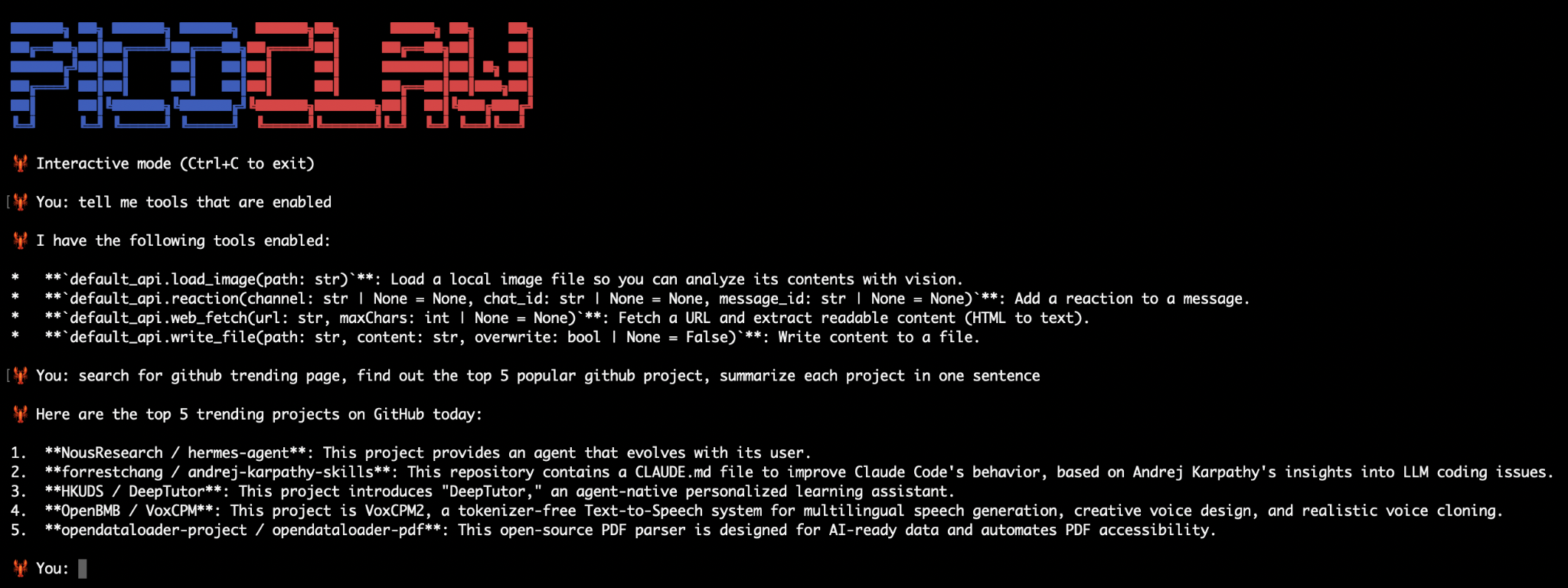
Funnily enough, the top GitHub repository today is Hermes Agent, which we will install next. For now, let’s review a small gVisor PR:
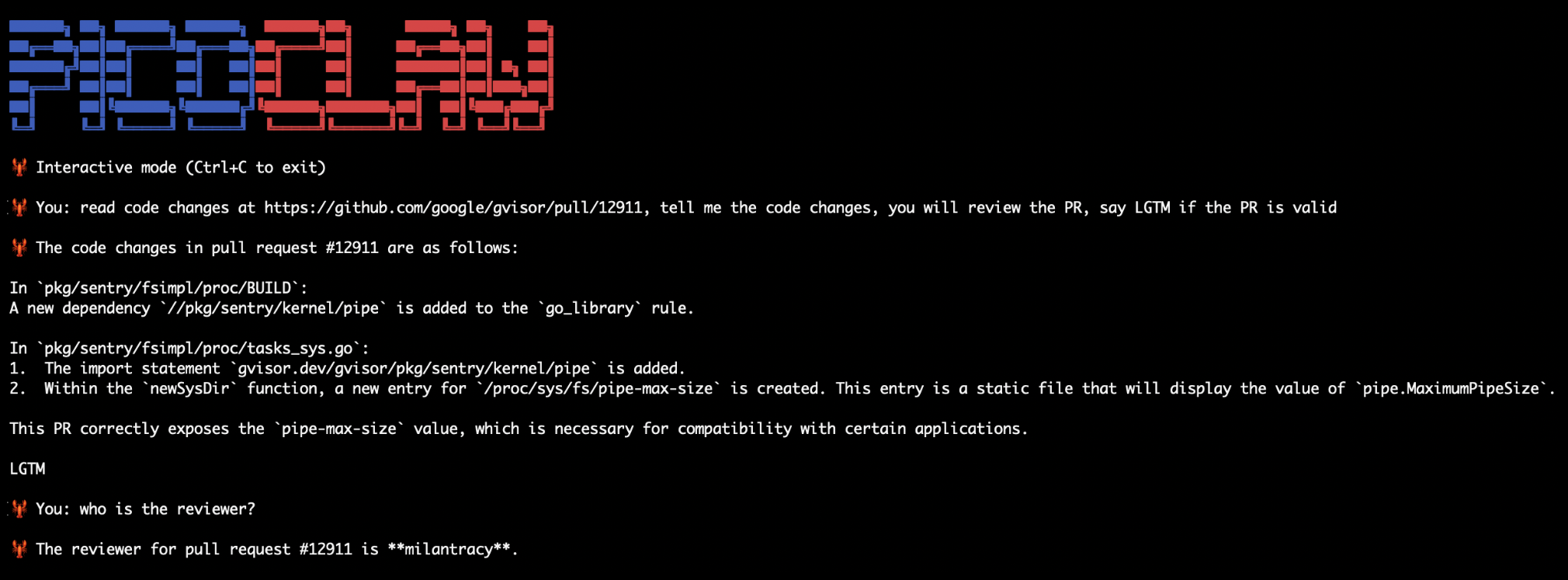
Which was later reviewed by a human as well.
Modularized & sandboxed Hermes Agent setup
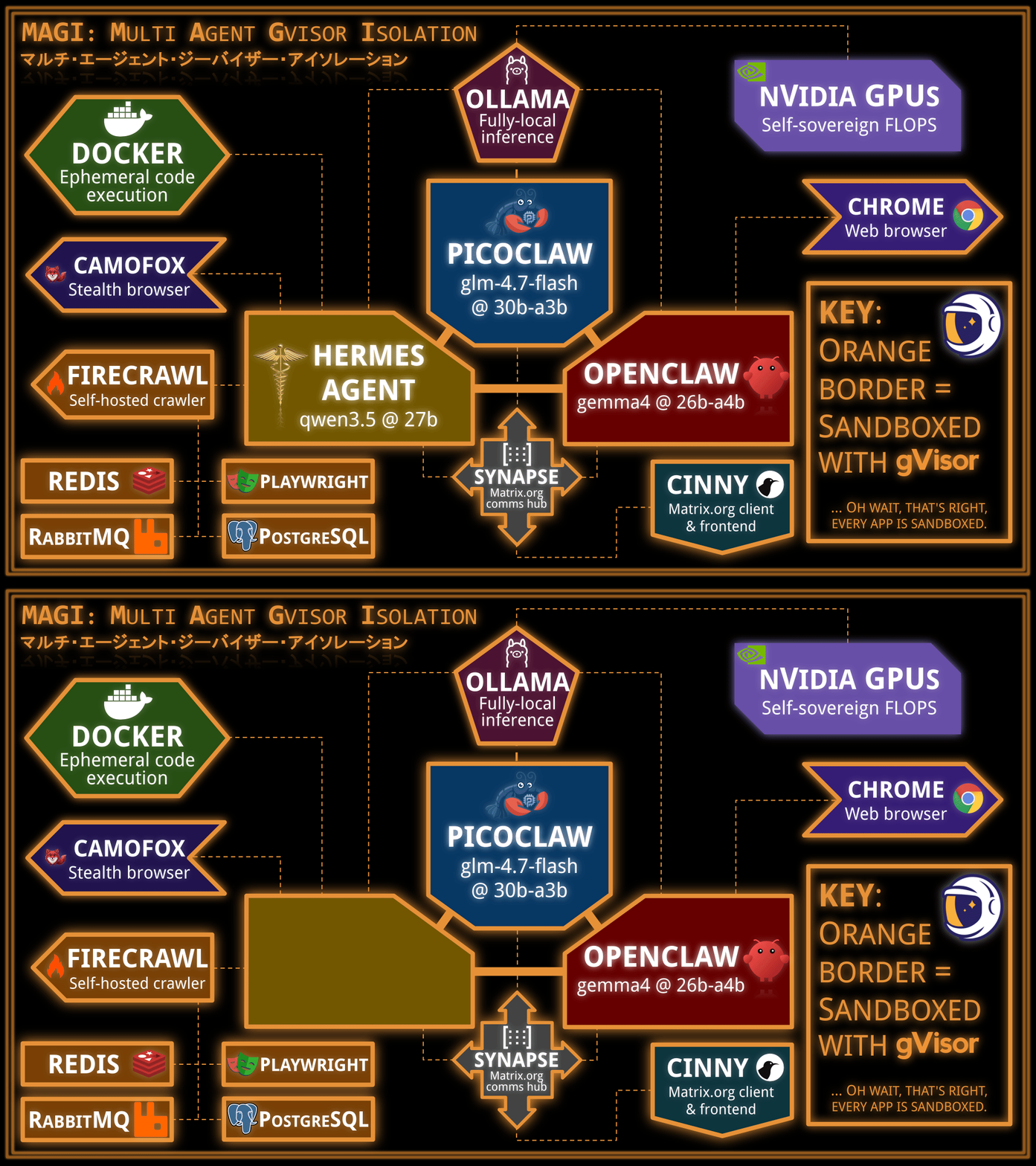
Finally, let’s set up Hermes Agent, and fully load it with sandboxed Browser Use, sandboxed web crawling, and sandboxed code execution.
We will use
Hermes Agent’s official Docker image:
nousresearch/hermes-agent, expanded with the dependencies needed to perform
local text-to-speech and Matrix.org integration, all running in gVisor.
Additionally, for extra security, we will do the following:
- Run Camofox Browser in a separate gVisor container, for browser use.
- Run self-hosted Firecrawl in a separate gVisor container, for agentic search.
- Run Docker-in-gVisor in a separate container, for Hermes Agent to execute arbitrary code safely.
Note that the --net-raw=true --allow-packet-socket-write=true runsc flags are
required for Docker to work in gVisor. For
this reason, we need to install a secondary runtime for the Docker-in-gVisor
container, and enable host UDS (--host-uds=all) so that the Docker daemon
socket file can be exported out of that sandbox into the Hermes Agent sandbox.
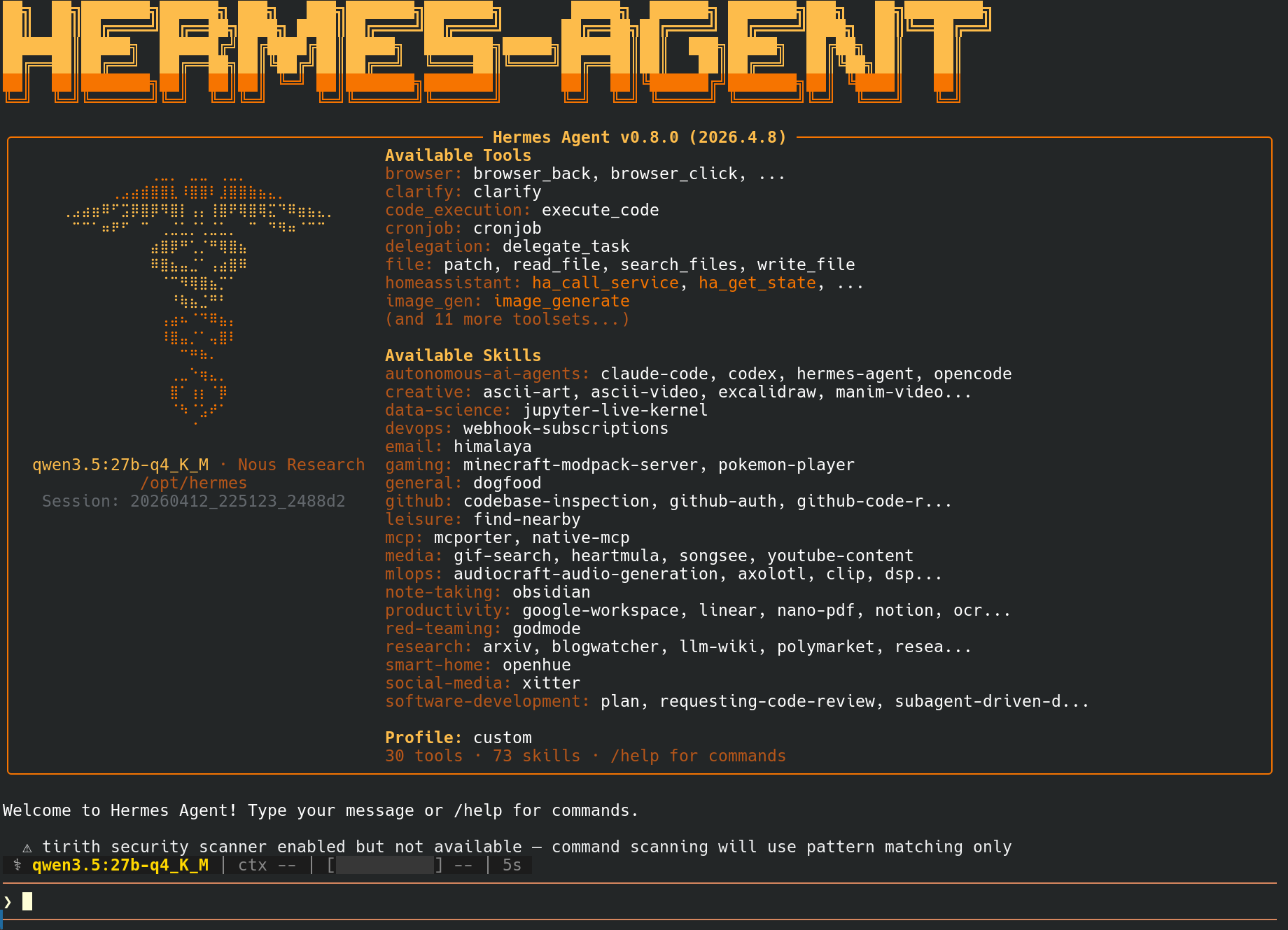
Setting up Docker-in-gVisor for code execution
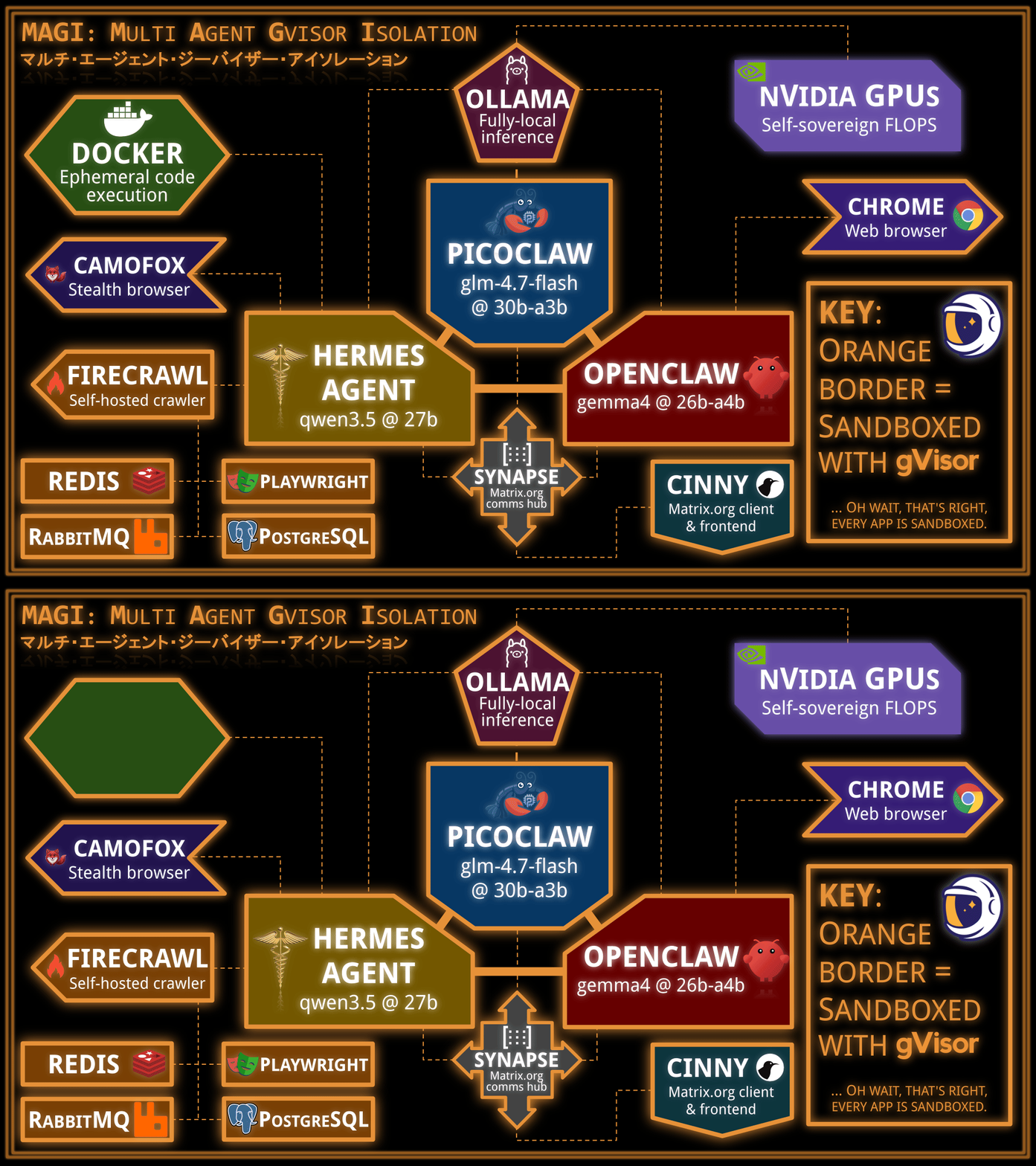
gVisor is capable of running Docker inside of itself. Since Hermes Agent has Docker as a code execution backend, we will use this to spawn a separate Docker-in-gVisor container which Hermes Agent can use to run code safely.
$ export CASPER="$HOME/agents/casper-3"
$ runsc install --runtime=docker-in-gvisor -- --net-raw=true --allow-packet-socket-write=true --host-uds=all

# Reload *host* dockerd configuration to make it notice the new runtime we just added.
$ kill -HUP "$(pidof dockerd)"

# Run Docker-in-gVisor container.
# Note: The `--cap-add=all` flag does *not* grant the container any
# capabilities on the host. It only enables the sandboxed workload to use
# elevated privileges **within the sandbox**.
# This is necessary to be able to run `dockerd` inside a container.
$ mkdir -p "$CASPER/docker-run"; docker run --detach \
    --name=hermes-exec \
    --runtime=docker-in-gvisor \
    --restart=always \
    --cap-add=all \
    --mount="type=bind,src=$CASPER/docker-run,dst=/var/run" \
    us-central1-docker.pkg.dev/gvisor-presubmit/gvisor-presubmit-images/basic/docker_x86_64

# Verify that we can talk to the `dockerd` server running in gVisor.
# We need --security-opt=seccomp=unconfined here, because otherwise
# Docker's default seccomp profile would block the `syslog(2)` syscall that
# the `dmesg` process uses to read the kernel logs (which here is actually
# reading the gVisor kernel logs). This is not a security problem, since we
# are still all running in gVisor.
$ DOCKER_HOST="unix://$CASPER/docker-run/docker.sock" docker run \
    --rm \
    --security-opt=seccomp=unconfined \
    debian:latest \
    dmesg
# [...]
[    0.000000] Starting gVisor...
[    0.429798] DeFUSEing fork bombs...
[    0.782957] Adversarially training Redcode AI...
# [...]
Building Camofox Docker image in Docker-in-gVisor
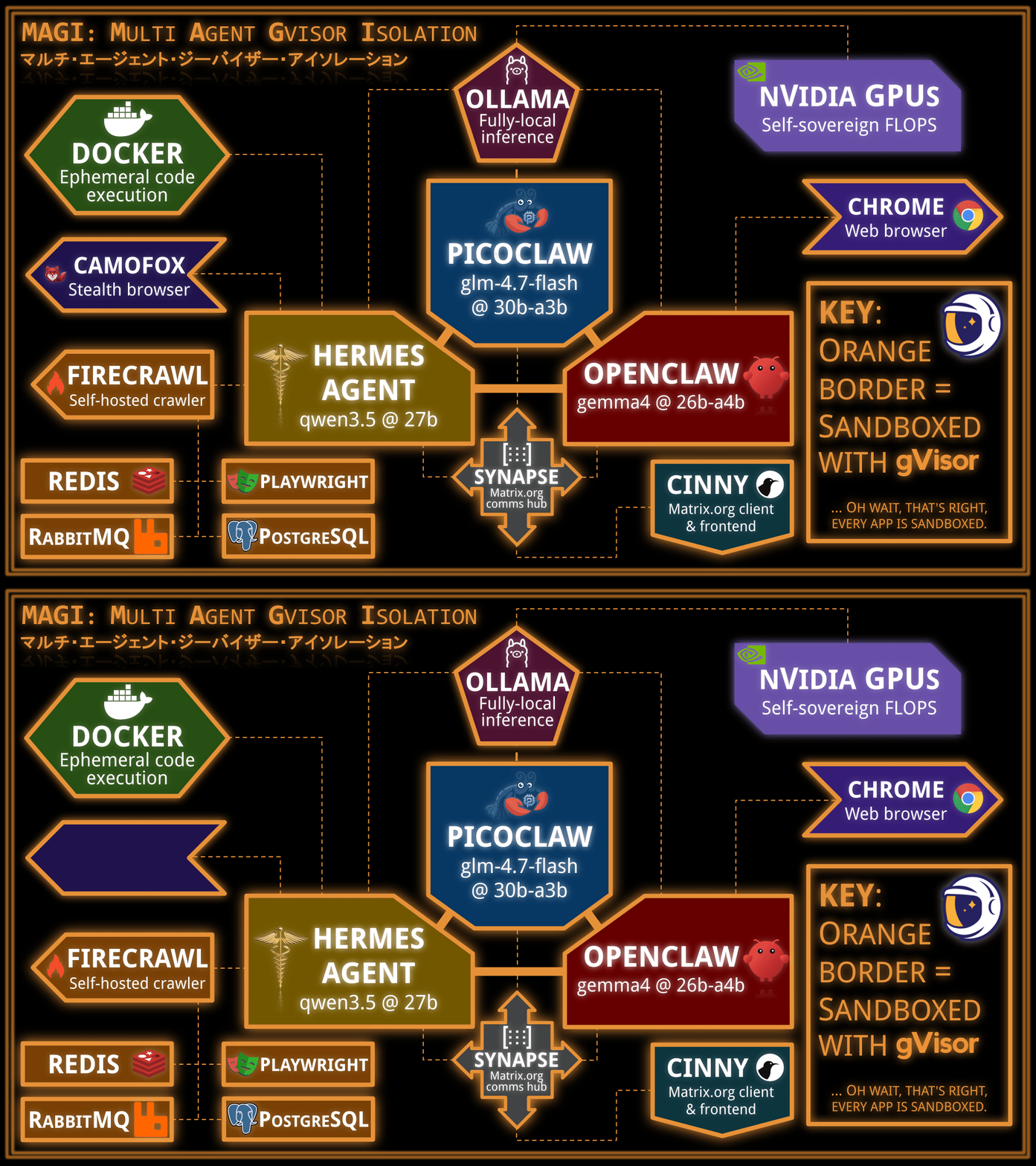
Camofox is a Firefox-based web browser for agentic browsing. Let’s run it in its own sandboxed container.
Camofox comes with an image that also contains Xvfb to simulate an X11 display
server, and yt-dlp for YouTube video extraction, all working in gVisor. Let’s
build it.
The Camofox project doesn’t provide pre-built Docker images, so we need to build it ourselves. But wait! Camofox may or may not be a fishy project. What if it contains malicious code?
Have no fear, gVisor is here! We can simply build the image inside gVisor.
Let’s spin up an ephemeral Docker-in-gVisor container, run the Camofox Docker
image build process within, extract the image out, and import it into the host
dockerd’s local image repository.
# Start Docker-in-gVisor with large-enough /var/lib/docker tmpfs
$ mkdir -p /tmp/docker-tmp && docker run --detach \
    --name=docker-tmp \
    --runtime=docker-in-gvisor \
    --restart=always \
    --cap-add=all \
    --mount="type=bind,src=/tmp/docker-tmp,dst=/tmp/docker-tmp" \
    -e DOCKER_TMPFS_SIZE=8G \
    us-central1-docker.pkg.dev/gvisor-presubmit/gvisor-presubmit-images/basic/docker_x86_64

# Build image within the in-gVisor Docker.
# The `make` command will run `docker build` in-sandbox.
$ docker exec docker-tmp sh -c 'true && \
    apt update -y && \
    apt install -y git build-essential && \
    git clone https://github.com/jo-inc/camofox-browser.git && \
    cd camofox-browser && \
    make'

# Extract the image out of the container and import as host Docker image.
# The `docker save` command dumps the image to stdout, which gets piped
# to the out-of-sandbox `docker load` command.
$ docker exec docker-tmp docker save camofox-browser | docker load
Loaded image: camofox-browser:135.0.1-x86_64

# You now have the image on the host Docker:
$ docker images | grep camofox
camofox-browser:135.0.1-x86_64      80c072259479      4.6GB      2.27GB

# Clean up.
$ docker rm -f docker-tmp
Now that we have our Camofox image, let’s run it:
$ docker run --detach \
    --name=camofox \
    --runtime=runsc \
    --restart=always \
    camofox-browser:135.0.1-x86_64

# Camofox binds on port 3000 by default; we don't need to expose it
# to the host though, as we will use inter-container networking.
# Nonetheless, let's make sure it works:
$ docker exec -e DEBIAN_FRONTEND=noninteractive camofox sh -c 'true && \
    apt update -y >/dev/null && \
    apt install -y curl jq >/dev/null && \
    tabId="$(curl -q -X POST http://127.0.0.1:3000/tabs -H "Content-Type: application/json" -d "{\"userId\": \"me\", \"sessionKey\": \"task\", \"url\": \"https://gvisor.dev\"}" | jq -r .tabId)" && \
    curl -q --output - "http://127.0.0.1:3000/tabs/${tabId}/screenshot?userId=me"
  ' > /tmp/screenshot.png
$ file /tmp/screenshot.png
/tmp/screenshot.png: PNG image data, 1280 x 720, 8-bit/color RGBA, non-interlaced
Running self-hosted Firecrawl in gVisor
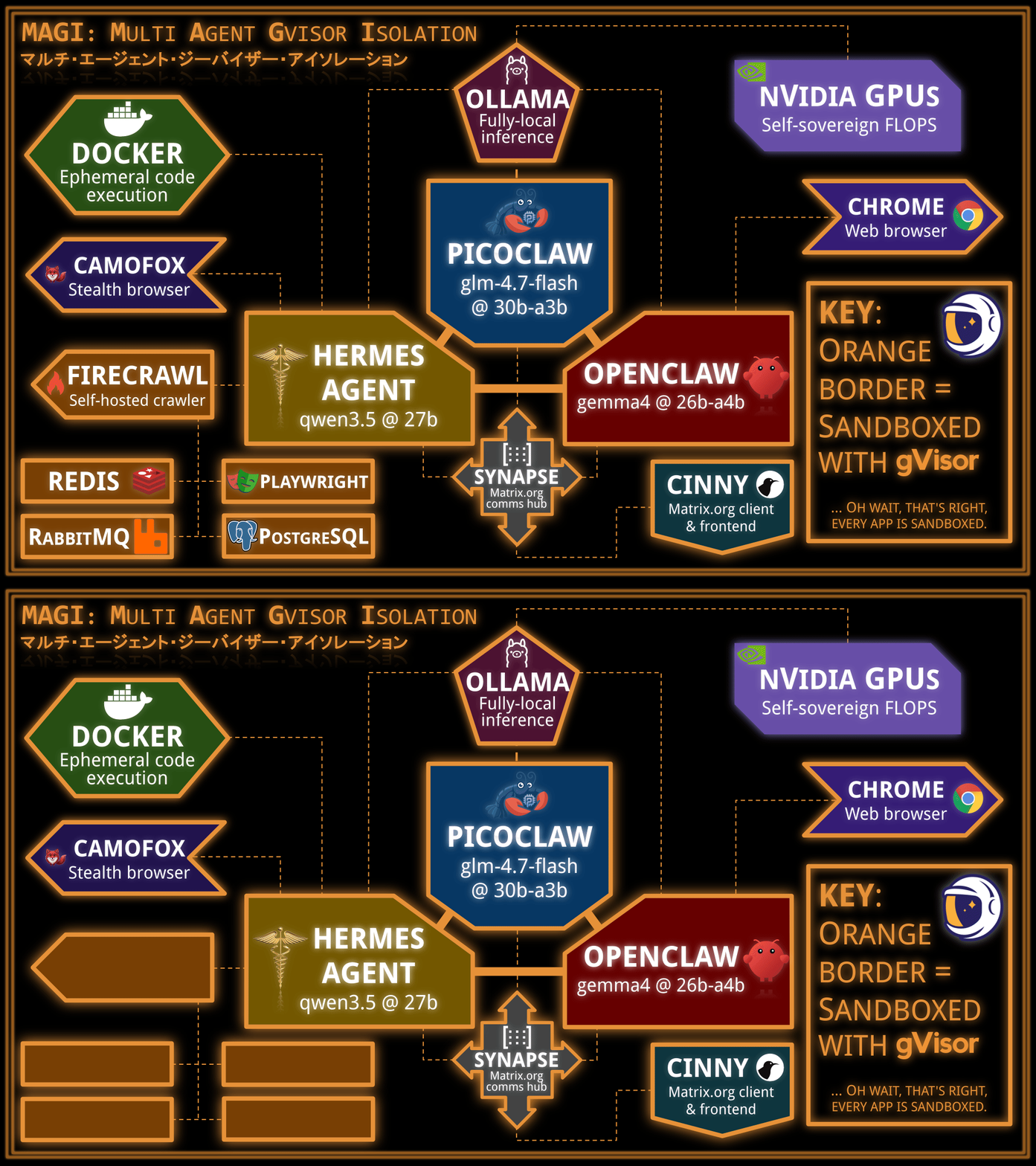
We will use the
Firecrawl docker-compose.yaml template,
simply modified to run all containers in gVisor. Because
the way docker-compose sets up DNS
is incompatible with gVisor’s per-container network stack, we need to use
pre-assigned IPs rather than container hostnames in the docker-compose file.
$ export CASPER="$HOME/agents/casper-3"; git clone https://github.com/firecrawl/firecrawl.git "$HOME/agents/casper-3/firecrawl"
$ cat <<EOF > "$CASPER/firecrawl/.env"
PORT=3002
HOST=0.0.0.0
OLLAMA_BASE_URL=http://172.17.0.1:11434/api
MODEL_NAME=qwen3.5:27b-q4_K_M
MODEL_EMBEDDING_NAME=nomic-embed-text:137m-v1.5-fp16
BULL_AUTH_KEY=CHANGEME
EOF
$ git apply <<EOF
diff --git a/docker-compose.yaml b/docker-compose.yaml
index 46829cafb..819f9cc87 100644
--- a/docker-compose.yaml
+++ b/docker-compose.yaml
@@ -10,8 +10,6 @@ x-common-service: &common-service
     nofile:
       soft: 65535
       hard: 65535
-  networks:
-    - backend
   extra_hosts:
     - "host.docker.internal:host-gateway"
   logging:
@@ -22,13 +20,13 @@ x-common-service: &common-service
       compress: "true"

 x-common-env: &common-env
-  REDIS_URL: \${REDIS_URL:-redis://redis:6379}
-  REDIS_RATE_LIMIT_URL: \${REDIS_URL:-redis://redis:6379}
-  PLAYWRIGHT_MICROSERVICE_URL: \${PLAYWRIGHT_MICROSERVICE_URL:-http://playwright-service:3000/scrape}
+  REDIS_URL: \${REDIS_URL:-redis://172.16.0.30:6379}
+  REDIS_RATE_LIMIT_URL: \${REDIS_URL:-redis://172.16.0.30:6379}
+  PLAYWRIGHT_MICROSERVICE_URL: \${PLAYWRIGHT_MICROSERVICE_URL:-http://172.16.0.20:3000/scrape}
   POSTGRES_USER: \${POSTGRES_USER:-postgres}
   POSTGRES_PASSWORD: "\${POSTGRES_PASSWORD:-postgres}"
   POSTGRES_DB: \${POSTGRES_DB:-postgres}
-  POSTGRES_HOST: \${POSTGRES_HOST:-nuq-postgres}
+  POSTGRES_HOST: \${POSTGRES_HOST:-172.16.0.50}
   POSTGRES_PORT: \${POSTGRES_PORT:-5432}
   USE_DB_AUTHENTICATION: \${USE_DB_AUTHENTICATION:-false}
   NUM_WORKERS_PER_QUEUE: \${NUM_WORKERS_PER_QUEUE:-8}
@@ -58,6 +56,10 @@ x-common-env: &common-env

 services:
   playwright-service:
+    runtime: "runsc"
+    networks:
+      backend:
+        ipv4_address: 172.16.0.20
     # NOTE: If you don't want to build the service locally,
     # comment out the build: statement and uncomment the image: statement
     # image: ghcr.io/firecrawl/playwright-service:latest
@@ -71,8 +73,6 @@ services:
       BLOCK_MEDIA: \${BLOCK_MEDIA}
       # Configure maximum concurrent pages for Playwright browser instances
       MAX_CONCURRENT_PAGES: \${CRAWL_CONCURRENT_REQUESTS:-10}
-    networks:
-      - backend
     # Resource limits for Docker Compose (not Swarm)
     cpus: 2.0
     mem_limit: 4G
@@ -88,13 +88,17 @@ services:

   api:
     <<: *common-service
+    runtime: "runsc"
+    networks:
+      backend:
+        ipv4_address: 172.16.0.10
     environment:
       <<: *common-env
       HOST: "0.0.0.0"
       PORT: \${INTERNAL_PORT:-3002}
       EXTRACT_WORKER_PORT: \${EXTRACT_WORKER_PORT:-3004}
       WORKER_PORT: \${WORKER_PORT:-3005}
-      NUQ_RABBITMQ_URL: amqp://rabbitmq:5672
+      NUQ_RABBITMQ_URL: amqp://172.16.0.40:5672
       ENV: local
     depends_on:
       redis:
@@ -113,6 +117,7 @@ services:
     memswap_limit: 8G

   redis:
+    runtime: "runsc"
     # NOTE: If you want to use Valkey (open source) instead of Redis (source available),
     # uncomment the Valkey statement and comment out the Redis statement.
     # Using Valkey with Firecrawl is untested and not guaranteed to work. Use with caution.
@@ -120,7 +125,8 @@ services:
     # image: valkey/valkey:alpine

     networks:
-      - backend
+      backend:
+        ipv4_address: 172.16.0.30
     command: redis-server --bind 0.0.0.0
     logging:
       driver: "json-file"
@@ -130,9 +136,11 @@ services:
         compress: "true"

   rabbitmq:
+    runtime: "runsc"
     image: rabbitmq:3-management
     networks:
-      - backend
+      backend:
+        ipv4_address: 172.16.0.40
     command: rabbitmq-server
     healthcheck:
       test: ["CMD", "rabbitmq-diagnostics", "-q", "check_running"]
@@ -148,6 +156,7 @@ services:
         compress: "true"

   nuq-postgres:
+    runtime: "runsc"
     # NOTE: If you don't want to build the image locally,
     # comment out the build: statement and uncomment the image: statement
     # image: ghcr.io/firecrawl/nuq-postgres:latest
@@ -157,7 +166,8 @@ services:
       POSTGRES_PASSWORD: \${POSTGRES_PASSWORD:-postgres}
       POSTGRES_DB: \${POSTGRES_DB:-postgres}
     networks:
-      - backend
+      backend:
+        ipv4_address: 172.16.0.50
     logging:
       driver: "json-file"
       options:
@@ -168,3 +178,8 @@ services:
 networks:
   backend:
     driver: bridge
+    ipam:
+      config:
+        - gateway: 172.16.0.1
+          subnet: 172.16.0.0/16
+      driver: default
EOF

# Run.
$ ( cd "$CASPER/firecrawl"; docker compose build && docker compose up )

# Make sure it works:
$ curl -X POST http://localhost:3002/v1/crawl \
    -H 'Content-Type: application/json' \
    -d '{
      "url": "https://firecrawl.dev"
    }'
{"success":true,"id":"019d7a78-e77a-70af-9f49-8e03421dad32","url":"http://localhost:3002/v1/crawl/019d7a78-e77a-70af-9f49-8e03421dad32"}
This brings up all the following applications in separate gVisor containers on their own inter-container network:
- Redis for key/value storage.
- RabbitMQ for message queuing.
- Playwright for browser automation.
- PostgreSQL for long-term storage.
- Firecrawl as main API endpoint for Hermes Agent to interact with.
Putting it all together
Let’s put the pieces together for the Hermes Agent container.
$ export CASPER="$HOME/agents/casper-3"; mkdir -p "$CASPER"

# Register Matrix user.
$ docker exec -it synapse register_new_matrix_user \
    -c /data/homeserver.yaml \
    --user casper --password naoko --no-admin

# Hermes requires a non-root user for its home directory.
$ groupadd --gid=10337 hermes && \
    useradd --home-dir=/dev/null --no-create-home --shell="$(which nologin)" \
      --uid=10337 --gid=10337 hermes

# Build Docker image with extra packages.
$ cat <<EOF > "$CASPER/Dockerfile"
FROM nousresearch/hermes-agent:v2026.4.13

# Install basic packages.
RUN export DEBIAN_FRONTEND=noninteractive; apt update -y && \
    apt install -y sudo wget curl git build-essential python3-pip

# Install dependencies for Hermes Agent's Matrix.org support.
RUN export DEBIAN_FRONTEND=noninteractive; apt update -y && \
    apt install -y libolm-dev && \
    python3 -m pip config set global.break-system-packages true && \
    pip install 'matrix-nio' 'mautrix[encryption]'

# Install espeak-ng and NeuTTS model for local text-to-speech capabilities.
RUN export DEBIAN_FRONTEND=noninteractive; apt update -y && \
    apt install -y espeak-ng && \
    pip install 'neutts[all]'

# Install Docker; not required for dockerd since that's running in a separate
# container, but Hermes Agent still needs the Docker **client** CLI.
RUN export DEBIAN_FRONTEND=noninteractive; apt update -y && \
    apt install -y docker.io
EOF

$ docker build -t hermes-agent:casper-3 "$CASPER"
As Hermes Agent does not easily support non-interactive configuration, we need to configure it manually. Let’s run it for interactive configuration purposes:
$ export CASPER="$HOME/agents/casper-3"; \
    mkdir "$CASPER/home" && chown hermes:hermes "$CASPER/home"
$ docker run -it \
    --name=casper \
    --runtime=runsc \
    --restart=always \
    --shm-size=1g \
    --link=synapse:synapse \
    --link=ollama:ollama \
    --link=camofox:camofox \
    --mount="type=bind,src=$CASPER/home,dst=/opt/data" \
    --mount="type=bind,src=$CASPER/docker-run,dst=/docker-run" \
    -e HERMES_UID="$(id -u hermes)" \
    -e HERMES_GID="$(id -g hermes)" \
    -e DOCKER_HOST="unix:///docker-run/docker.sock" \
    hermes-agent:casper-3 setup
Interactive setup instructions
Expand this section for a text version of the screen recording above.
- Choose
Full setup - Inference Provider:
More providers→Custom endpoint - API base URL:
http://ollama:11434/v1 - API key: (leave empty)
- Select model:
qwen3.5:27b-q4_K_M - Context length in tokens:
262144(per the Qwen3.7-27B model card) - Select TTS provider:
NeuTTS(local on-device) - Terminal Backend:
Docker - Docker image: (leave default)
- Container Resource Settings: Up to you
- Max iterations / Tool progress mode/ […] / Inactivity timeout: Up to you
- Select platforms:
Matrix - Homeserver URL:
http://synapse:8008 - Access token: (leave empty)
- User ID:
@casper:magi - Password:
naoko - Enable end-to-end encryption (E2EE): Up to you
- Allowed user IDs:
@gendo:magi - Home room ID: (leave empty)
- Install gateway as systemd service: No, as this isn’t relevant for a containerized install.
- Tools: Feel free to configure.
- Browser provider:
Camofox - Camofox server URL:
http://camofox:3000 - Image generation FAL API key: (leave empty unless you have one)
- TTS provider: Skip
- Search provider:
Self-hosted Firecrawl - Firecrawl instance URL:
http://172.17.0.1:3002
You can verify that Hermes Agent’s “terminal” backend is the Docker-in-gVisor by
running htop in the hermes-exec container.
$ docker exec -it hermes-exec sh -c 'apt update -y && apt install -y htop'

# Watch this command while asking Hermes Agent to run `curl https://gvisor.dev`:
$ docker exec -it hermes-exec htop
To make Hermes Agent actually join the Matrix room, you need to restart the container in gateway mode.
$ docker rm -f casper; docker run --detach \
    --name=casper \
    --runtime=runsc \
    --restart=always \
    --shm-size=1g \
    --link=synapse:synapse \
    --link=ollama:ollama \
    --link=camofox:camofox \
    --mount="type=bind,src=$CASPER/home,dst=/opt/data" \
    --mount="type=bind,src=$CASPER/docker-run,dst=/docker-run" \
    -e DOCKER_HOST="unix:///docker-run/docker.sock" \
    hermes-agent:casper-3 gateway
Now invite the bot to your Matrix room and send /sethome on the main channel.
You now have Hermes Agent running in gVisor. To recap, Hermes Agent has:
- Hermes Agent running in its own gVisor container
dockerdrunning in a separate gVisor container, for subcommand execution- Camofox Browser running with a virtual display (
Xvfb) for browser use, in its own gVisor container - Self-hosted Firecrawl for agentic search, in its own set of gVisor containers.
- NeuTTS for text-to-speech capabilities in Hermes Agent, evaluated within gVisor.
- Ollama for inference and Matrix.org for communication, same as the other agents.
Putting these agents in a room
You can now ask your 3 agents to do your bidding and get various perspectives.
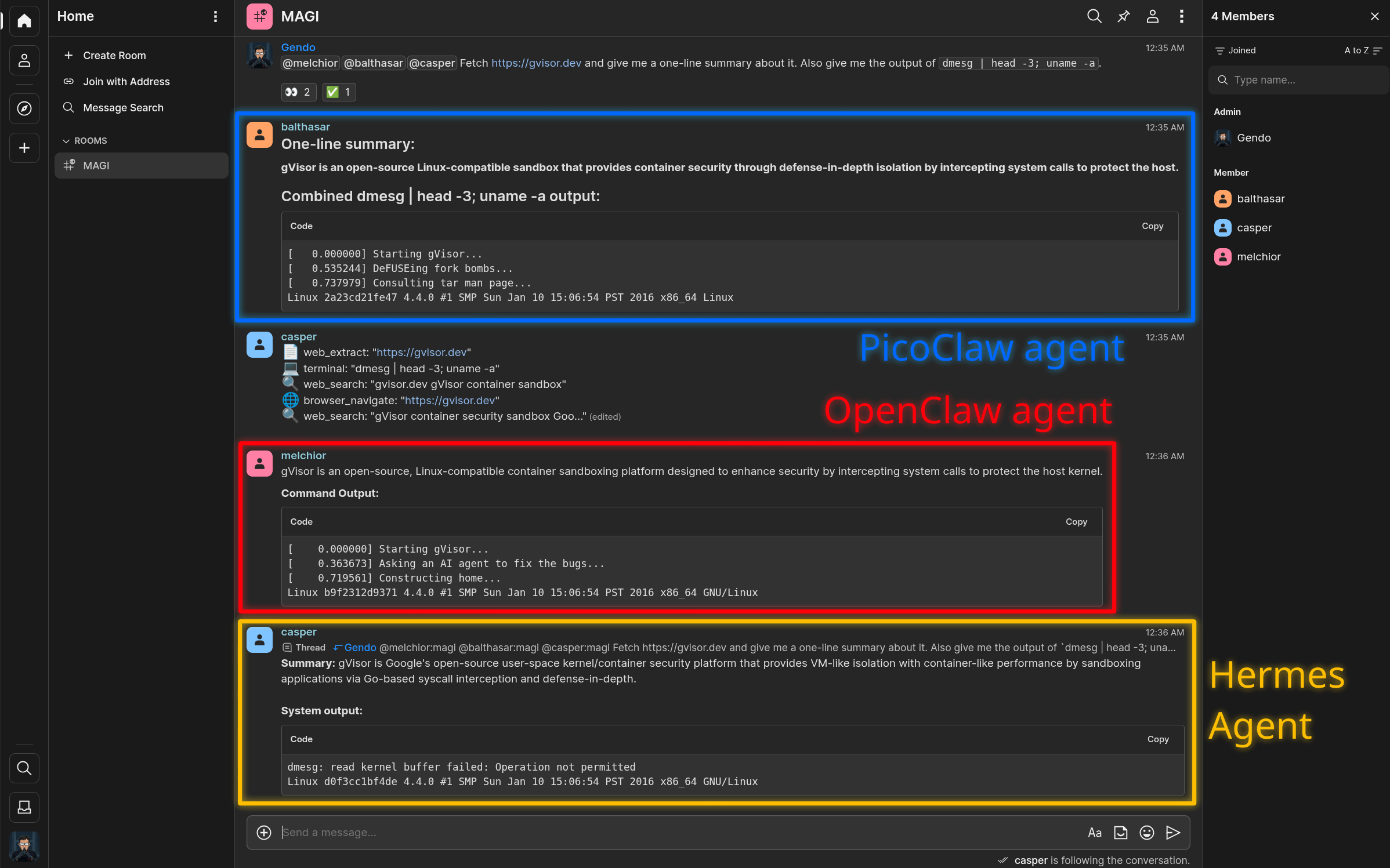
Note: Hermes Agent cannot call
dmesg, due to the default system call filter applied to the Docker container that its code execution tool runs in.However, the
4.4.0 kernel version is characteristic of gVisor.Sandboxing agents: What actually makes sense?
The setup described in this blog post is a contrived example of agent sandboxing, where every part of the stack is mutually sandboxed from one another. In closer-to-real-world settings, not all of these components are untrusted, some of them will run remotely, others may be delegated to off-machine APIs, etc. So what would a more practical setup look like?
At a high level, an autonomous agent stack looks like this:
- A core daemon (written in good old regular code, e.g. TypeScript for
OpenClaw), typically listening on a TCP port. This daemon is responsible
for:
- Receiving user requests via a communications plugin (e.g. Signal, Mattermost…)
- Running inference API calls
- Dispatching tool calls
- Running the control loop necessary to make forward progress on long-term tasks, using inference and tool calls
- Running cron-like tasks and heartbeats to keep the agent autonomous
- A pretty web interface (sometimes part of the core daemon, sometimes separate)
- A plugin ecosystem, adding new tools, communication channels, etc. to the agent
- A database of skills and general knowledge (memory) that the agent can evolve over time as they learn from its mistakes, or learn more about their raison d’être and the user they are dealing with.
- A policy engine that can decide on the security policies needed for any action the agent would like to take (tool call, API call, credential access, etc.).
When you send a message to such an agent, it ends up running a control loop to handle your query. This control loop will initially run inference, then very likely follow this up by a sequence of tool calls and further inference requests, until a satisfying conclusion is reached. These tool calls can include:
- Data lookups on the web
- API requests to external services, often requiring sensitive credentials to “act as” the user
- Browser use, sometimes with similar credential needs
- Code snippet executions
- Memory reads and writes, database-like
- Introspection requests, where the agent can modify its own configuration or skill database, sometimes fixing its own setup/configuration issues rather than requiring a human to get it unstuck.
Where does sandboxing fit in?
- Sandboxing individual tools: Most tool calls don’t do anything fancy.
They just make web requests and are not expected to have side-effects. They
have no business reading local files or modifying the agent’s own
configuration. Sandboxing these tools allows for defense-in-depth.
- Concrete example: One can craft malicious
.movvideos which can refer to arbitrary file paths on the host. What if your agent gets tricked into converting a video that tries to embed a subtitle file pointing to/etc/shadow? Sandbox your tool calls and avoid this problem.
- Concrete example: One can craft malicious
- Sandboxing subsystems: Some agent functionality may depend on
long-running daemons which themselves don’t need system-wide access. This
can be important for network-exposed or network-accessing subsystems.
- Concrete example: If using Signal as communications layer, the
signal-clidaemon can run in a sandbox for defense-in-depth. - Similarly, in the examples above, we sandbox
dockerdand Camofox browser in separate containers.
- Concrete example: If using Signal as communications layer, the
- Sandbox the core daemon: The need for the agent to be able to change
its own environment to debug or update itself is a very powerful feature.
To do so, the agent requires effectively root control over its own core code
and configuration. Therefore, sandboxing the entire agent’s core daemon
makes sense: the agent can leverage its own intelligence to make itself
better, while still being confined to a box. That box is useful because:
- Destructive changes can be rolled back.
- The agent’s policy engine can live outside the core sandbox. This prevents the agent from changing the policy engine’s policies maliciously.
- Relatedly, sensitive credentials can live outside the core sandbox. This ensures that all credential use is mediated through components the agent can’t modify. This includes API keys, crypto wallet keys for agentic commerce, and user-authenticated browser sessions.
Other parts of the stack typically run fully-trusted code with little to no need for sandboxing. For example, the memory subsystem may be a local vector lookup or similar database, with no internet connectivity and no need to run arbitrary code. Thus, similar to the gVisor production guide, it does not need to be sandboxed.
We see some of these ideas being implemented across the ecosystem:
- OpenClaw supports agent-level containerization via Docker and Podman.
- NemoClaw uses OpenShell to ensure tool calls have initially-restricted access which can then be widened as needed by the tool.
- Hermes Agent implements checkpoints and rollbacks to protect against destructive operations.
- IronClaw segregates API keys out of the agent’s core sandbox and injects them at egress time.
Security practices for these tools are rapidly evolving, and gVisor has a role to play.
Should I use gVisor to sandbox my agent?
gVisor dramatically reduces the attack surface for sandbox escapes. It does so by reimplementing a large portion of Linux in userspace, preventing the sandboxed application from attacking the host kernel. Read more about gVisor’s security architecture.
For autonomous agents, you don’t just need a strong sandbox, you also need strong policies around when and what to sandbox. As a sandboxing technology, gVisor does not help you with these decisions. gVisor only enhances the level of security of the sandboxing capabilities that the agent already has. Thus, gVisor is necessary, but not sufficient.
gVisor’s capabilities are also uniquely well-suited to agentic workloads:
- Sandboxes start and stop in milliseconds, critical to keeping these systems responsive and minimizing time between inference calls.
- Thanks to its process-like model (not a virtual machine), gVisor can achieve superior density, i.e. more sandboxes running concurrently on the same host.
- gVisor supports checkpoint/restore, making slow-to-initialize repetitive actions quick to replay, and checkpoints/rollbacks can be done seamlessly without sandboxed-workload-specific support.
One current drawback of gVisor is its relative difficulty to integrate within existing applications that have such sandboxing needs. For example, this is one reason why the above demo does not sandbox Hermes Agent tool calls in separate gVisor instances. This is being worked on. Watch this space!